
Blogs
How to Set Up a New Printer Without Missing Important Steps
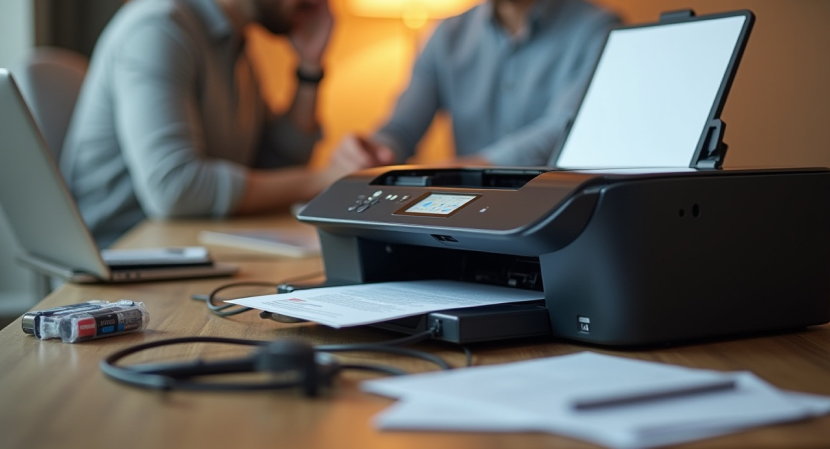
How to Set Up a New Printer Without Missing Important Steps
Even while setting up a new printer may appear easy, missing tiny tasks can cause problems with the connection, printing, or functionality later on. Following a planned setup approach helps make sure that the printer works well from the start, whether it's for home or workplace use. This article shows you the most important steps for setting up a new printer correctly, without making things more difficult than they need to be.
Printer unpacking and setup
Carefully unpack the printer and take off all the protective materials before turning it on. To keep parts from getting damaged during shipping, manufacturers often use tapes, foam inserts, or plastic covers to hold them in place. If you leave these things where they are, they can get in the way of paper moving or ink spreading.
Put the printer on a flat, stable surface with enough room around it for air to flow and to get to the paper tray. If you can, avoid using extension cables and make sure the power outlet is close by. Direct connections provide more reliable power.
How to Put Ink or Toner in the Right Way
When you first set up most printers, you need to put in ink cartridges or toner. If you don't follow the manufacturer's directions, you could have problems with alignment or detection. When you first use an inkjet printer, it may ask you to charge it up. This gets the printhead ready to work.
Don't touch the copper contacts or ink nozzles on cartridges since the oils on your hands can make them work less well. After you install the printer, let it finish any setup processes before you move on.
Loading Paper and Adjusting Trays
People often forget to load paper correctly, but if you don't, you can get a lot of paper jams or prints that are crooked. Follow the printer's instructions for the right paper size and type. Make sure that the paper guides in the tray touch the edges of the paper stack without bending it.
Using plain paper for the first setup is a good idea. You can add specialty paper later, after you make sure the fundamental functions work.
Connecting the Printer to Power and Devices
Connect the printer to power and turn it on after getting it ready. Depending on the model, you might be able to connect by USB, a wired network, or a wireless network. Most of the time, you need to choose a Wi-Fi network and enter your credentials through the printer's control panel or setup software.
If you're connected via USB, make sure the cable is securely linked before installing drivers. To avoid problems with detection, make sure that the printer and the device are on the same network for network connections.
Installing Software and Drivers
Drivers help your computer or device talk to the printer correctly. Some printers automatically install drivers, but others need you to download them from the manufacturer's official website. To keep everything stable and compatible, you need to use the right driver version for your operating system.
Do not use generic drivers unless you are told to, as they may make it harder to use sophisticated printer capabilities. After installation, restarting the system might assist make sure that settings are applied appropriately.
Running Test Prints And Calibrating
After you install the drivers, do a test print to make sure the printer is working correctly. Test pages help you find problems with alignment, missing colors, or connections early on. Some printers additionally come with equipment for calibration or alignment, which makes prints more accurate and of better quality.
If the test print doesn't finish, look at the error messages that show up on the printer or device. Taking care of these problems early on stops them from happening again later.
Final Checks and Ongoing Readiness
After setting up the printer, take a moment to look over the settings for things like the default paper size, print quality, and connection options. When you save the right defaults, you don't have to make changes as often.
It can be beneficial to keep the setup instructions handy and write down the printer's model number for future reference. A well-planned setup makes sure that things work the same way every time and that there are fewer problems during normal use.
Setting Things Up Carefully Saves Time Later
It takes time and care to set up a printer correctly, but it will last longer if you do. You may avoid problems and make sure the printer is ready for everyday duties by carefully following each step, from unpacking to test printing.