
Blogs
Why Your Printer Shows Offline Even When Connected to Wi-Fi
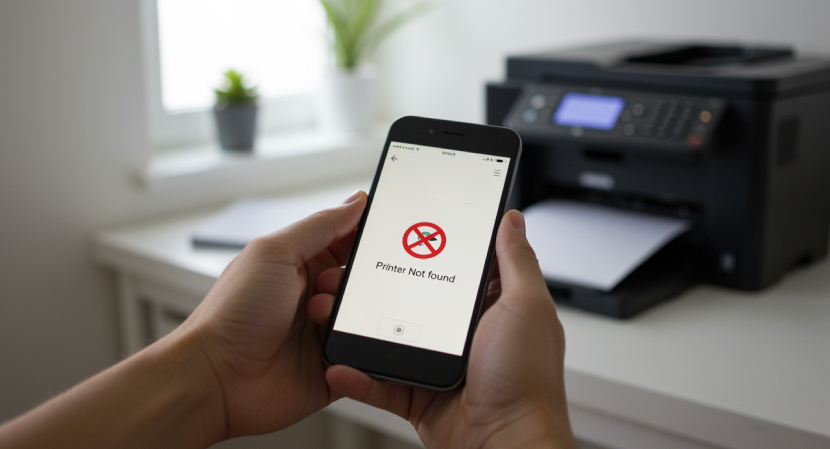
Why Your Printer Shows Offline Even When Connected to Wi-Fi
It can be hard to understand why a printer is categorized as "offline" when it looks like it's connected to the same Wi-Fi network as your computer or device. This problem happens with a lot of different types of printers and operating systems, and it doesn't always mean that the hardware is broken. Users can figure out what caused something to happen and take the right measures to fix it if they know why it happened.
What "offline" really means
If your printer says it's offline, it usually implies that the printer and the computer aren't talking to each other properly. This doesn't always have to do with getting online. Instead, it usually has to do with recognizing the network, setting up the program, or having momentary problems with connectivity.
Even if a printer is turned on and connected to Wi-Fi, it may still look like it is offline if the system can't find it on the network or if print jobs aren't being sent to the right place.
Network Changes and IP Address Conflicts
One reason printers could seem unavailable is that the network settings have changed. When devices reconnect, restart, or have a brief problem, routers might give them new IP addresses. The printer may not be available if the computer is still trying to connect using an outdated IP address.
This is more likely to happen after you reset your router, lose power, or move networks. In these situations, the printer stays connected, but the system can't find its current network location anymore.
Power Settings & Sleep Mode for Printers
To save energy, many modern printers go into sleep or low-power modes. These modes can be helpful, but they can also mess up network communication at times. If the printer takes too long to start up, the computer can think it's offline for a short time.
Power-saving features may potentially slow down the network, especially if the printer hasn't been used in a while. Changing the sleep settings or restarting the printer for a short time will help get communication back to normal.
Driver or Software Mismatch
Printer drivers connect your device to the printer. If the drivers are old, broken, or not compatible with the operating system, the printer may not be able to communicate with the computer even when it is connected to Wi-Fi. Updates to the operating system can potentially change how drivers work. When this happens, the printer might still be connected to the network, but it won't respond to print requests correctly.
Settings for the Print Queue and Status
The problem isn't always with the printer itself; it could be with the print queue. If print jobs get stuck or aren't finished, fresh tasks can't be processed. Also, some system settings may require you to put the printer offline manually. For instance, if the "Use Printer Offline" option is turned on by mistake, the system will stop delivering jobs even when the printer is ready.
Firewall and Network Security Restrictions
Firewalls and router settings are examples of network security measures that can stop devices from talking to one another. This happens more often in shared networks, offices, or houses with strong security settings. If the printer is on a different network band or guest network than the PC, it could not be able to be found, which would make it go offline.
Steps to Get Your Online Status Back
Users can start fixing problems that happen when they're not online by restarting both the printer and the router. It's important to make sure that all of your devices are linked to the same Wi-Fi network. You can also check the printer settings, empty the print queue, and make sure the right printer is set as the default. If you're having trouble communicating with your printer, reinstalling or updating the drivers can help. These procedures usually fix the connection without needing to make any complicated technological changes.
When Being Offline Becomes a Habit
If a printer keeps going offline, it could be a sign of network problems or setup issues that need to be looked into more closely. Keeping an eye on when the problem happens can give you insights, like when you turn on sleep mode or make adjustments to the network.
Offline Does Not Always Mean Disconnected
A printer that says "offline" doesn't always imply it can't connect to Wi-Fi. A lot of the time, the problem has to do with network modifications, communication settings, or how software works. Users can fix the problem more easily and get back to normal printing without getting too upset if they know what these things are.